
Helpful next steps: How to Copy the Correct Pinterest Pin Link for DownloadingWhy Pinterest Downloader Is Not Working: 10 Common Reasons
You find a useful Pinterest video on your phone, save it to a board, and think it is stored on your device. Later, you open your gallery and it is not there. That is because saving a pin inside Pinterest is not the same as downloading the file to your phone.
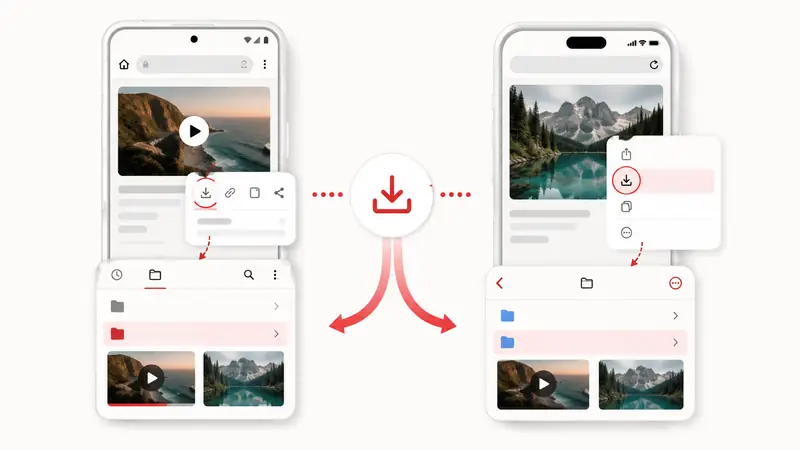
If you want the actual video, image, or GIF saved locally, you need to copy the pin link and use a Pinterest downloader in your mobile browser when the media is public and available. You can copy that link from the Pinterest app or directly from the Pinterest website in your phone browser. Here is how to do it on Android and iPhone.
Before You Start: Save vs Download
Pinterest has its own Save button, but it usually saves the pin to your Pinterest account. It does not always save the media file to your phone. Pinterest may offer a direct download option for some image Pins, but video, GIF, and other pin types do not always have that option.
The difference is simple:
- Save to Pinterest: keeps the pin inside your Pinterest boards
- Download to phone: saves the video, image, or GIF as a file on your device
If you need offline access, want to organize files, or want to send the media somewhere else, downloading is the better option.
How to Download Pinterest Content on Android
On Android, you can copy the pin link from the Pinterest app or from pinterest.com in Chrome or another mobile browser.
Step 1: Copy the Pinterest Pin Link
If you use the Pinterest app, open the pin you want to download, tap the share icon, and choose Copy link.
If you use Pinterest in a mobile browser, open pinterest.com, tap the exact pin, and copy the link from the browser address bar or the pin's share button if it is available.
Make sure you copy the link from the exact pin, not from a board, profile, or search page.
Step 2: Open the Downloader in Your Browser
Open Chrome or another browser on your phone. Go to a browser-based Pinterest downloader such as PintSave.
Paste the copied Pinterest link into the input field and start the search.
Step 3: Download the File
If the downloader finds available media, choose the download option. Depending on the pin, you may be able to download a video, image, or GIF.
Some Android browsers may ask for permission to download files or access storage. Allow it only if you trust the website and you started the download yourself.
On most Android phones, downloaded files go to:
- Downloads
- Files
- Gallery
- Photos, depending on your device and browser
If you cannot find the file, open the Files app and check the Downloads folder first.
How to Download Pinterest Content on iPhone
On iPhone, you can also copy the link from either the Pinterest app or the Pinterest website in Safari or another browser. The download process is similar, but saved files may appear in different places depending on Safari and iOS settings.
Step 1: Copy the Pin Link
If you use the Pinterest app, open the pin, tap the share icon, and choose Copy link.
If you use Pinterest in Safari, open pinterest.com, tap the exact pin, and copy the URL from the address bar. You can also use the pin's share button if Pinterest shows it in the browser.
If the link starts with pin.it, that is usually fine. It is a shortened Pinterest link that should lead to the original pin.
Step 2: Paste the Link Into a Downloader
Open Safari or another browser and go to PintSave or another browser-based Pinterest downloader. Paste the link and wait for the tool to find available media.
Step 3: Save the File on Your iPhone
Tap the download button. On iPhone, the file may be saved to:
- Files app
- Downloads folder
- Photos app, if the browser offers Save Video or Save Image
- iCloud Drive, depending on your settings
If you do not see the file in Photos, open the Files app and check Downloads. Some files stay in Files/Downloads and do not move to Photos automatically. In some cases, you may need to open the downloaded file, tap the share icon, and choose Save Video or Save Image to move it into Photos.
Common Mobile Problems
Downloading Pinterest content on a phone is simple, but a few things can go wrong.
The Downloader Cannot Find the Media
Usually this happens when the copied link is not a direct pin link. Open the link in a new browser tab. If it does not open one exact public pin, copy the link again from the pin's share button.
The File Does Not Appear in the Gallery
On Android, check the Files app and Downloads folder. On iPhone, check the Files app first. Some browsers save files there instead of the photo gallery.
The Pin Opens a Login Page
If the link opens a Pinterest login page instead of the actual pin, check whether the pin is public. Then copy the link again from the Pinterest app or from the pin page on pinterest.com in your mobile browser.
The Video Does Not Download
The pin may be private, deleted, restricted, affected by creator settings, or not a supported pin type or video format. Try another public pin to check whether the issue is with the link or the downloader.
Safety Tips for Mobile Users
Be careful with downloader websites that ask for too much access. A safe Pinterest downloader should not require your Pinterest password, app installation, or unknown browser extensions.
Use these checks:
- Do not enter your Pinterest login
- Avoid apps from unknown sources
- Use HTTPS websites
- Close pages that force unrelated downloads
- Keep downloaded files for personal use unless you have permission to reuse them
Final Tips
To download Pinterest content on Android or iPhone, start with the exact pin link. Copy it from the Pinterest app share button or directly from the pin page in your mobile browser, paste it into a browser-based Pinterest downloader, and check your Downloads or Files app if the file does not appear in your gallery.
Use Pinterest boards when you only want to collect ideas. Use a downloader like PintSave when you need an available video, image, or GIF from a public pin link saved on your phone for offline access, organizing, or later use. If you cannot find the downloaded file, check Files or Downloads before trying the same link again.