
Helpful next steps: How to Copy the Correct Pinterest Pin Link for DownloadingHow to Download Pinterest Content on Your Phone: Android and iPhone
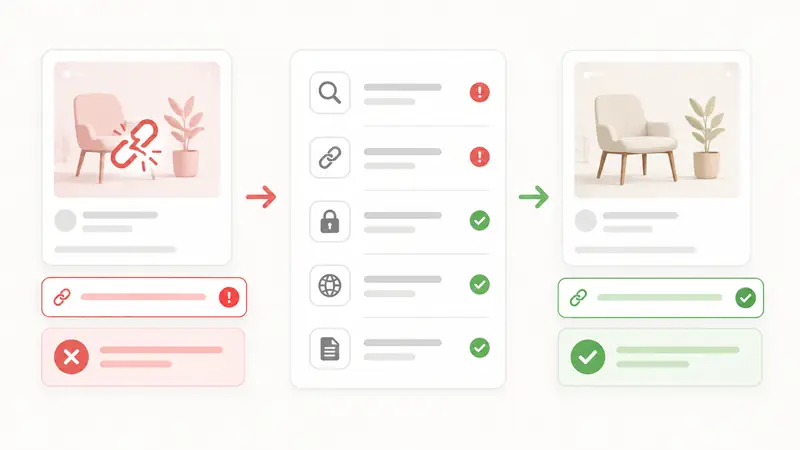
You paste a Pinterest link into a downloader, wait for the result, and get nothing. No video. No image. No download button.
In most cases, this does not mean the tool is broken. A Pinterest downloader may fail because the link is wrong, the pin is private, the media is unavailable, or your browser is blocking part of the process.
Here are the most common reasons why a Pinterest downloader is not working and what you can do about each one.
1. You Copied the Wrong Pinterest Link
This is the most common issue. A downloader needs a direct link to one specific pin. If you paste a board, profile, search page, or home feed link, it may not find any media.
A correct Pinterest pin link usually looks like:
https://www.pinterest.com/pin/1234567890/or a short Pinterest link like:
https://pin.it/abc123Fix: open the exact pin, use the share button, and copy the pin link again.
2. The Pin or Board Is Private
Some Pinterest content is not public. If the pin or board is private, or the link only works inside your account, a downloader may not be able to access it.
Fix: try opening the link in a private browser window. If you cannot see the pin without logging in, the downloader probably cannot read it either.
3. The Pin Was Deleted or Moved
Pinterest pins can disappear. The creator may delete the post, the account may be removed, or the content may become unavailable.
Fix: open the link in your browser. If Pinterest shows an error page or redirects you somewhere else, the pin is no longer available.
4. The Link Opens a Login Page
Sometimes a Pinterest link sends you to a login screen instead of the actual pin. This often happens with links copied from inside the app, account-specific pages, or pages that depend on your login session.
Fix: open the pin in a normal browser tab, use the share button on the pin, and copy the public pin link again.
5. The Pin Does Not Contain Downloadable Pinterest Media
Not every Pinterest post has a downloadable video, image, or GIF inside Pinterest. Some pins mainly point to external websites, product pages, previews, or collections.
A Pinterest downloader can usually work only with media available from the Pinterest pin itself. It cannot fetch files from every external website, product page, or article that a pin points to.
Fix: check whether the pin actually contains media inside Pinterest. If it only sends you to another website, there may be no Pinterest media file to extract.
6. The Format Is Not Supported
Pinterest uses different content types. A downloader may support videos, images, and GIFs, but not every special format, embedded post, or newly changed media type.
Fix: try another public pin to confirm the tool is working. If other pins download correctly, the issue is probably the specific pin format.
7. Pinterest Layout or Media Handling Changed
Pinterest layout, page structure, and media handling can change over time. When that happens, a downloader may need updates before it can read certain links correctly again.
Fix: wait a while and try again later. If many different pins fail at the same time, it may be a temporary compatibility issue.
8. Your Browser Is Blocking the Request
Ad blockers, privacy extensions, strict cookie settings, strict browser privacy settings, or VPNs can interfere with some downloader features. This may stop the page from loading results or starting the download.
Fix: try another browser, disable aggressive extensions for the downloader page, or test without a VPN.
9. Your Internet Connection Is Unstable
If the connection drops while the downloader checks the pin, the result may fail or load only partially.
Fix: refresh the page, check your connection, and try again. For large videos, use a stable Wi-Fi connection if possible.
10. The Downloader Is Temporarily Unavailable
Like any online tool, a Pinterest downloader can have temporary server issues, maintenance, or high traffic. If no links work at all, the problem may be on the service side.
Fix: reload the page, wait a few minutes, and test another public pin. If every pin fails, try again later or check whether the service has a status or error message.
How to Know If the Problem Is the Link or the Downloader
A quick test can save time.
Try opening the Pinterest link in a new browser tab. If it does not open one exact public pin, the problem is probably the link.
Then test another public Pinterest pin in the same downloader:
- If another pin works, the issue is likely the original pin
- If no pins work, the issue may be your browser, connection, or the downloader service
- If the page does not load at all, check your internet connection or try another browser
This simple check helps you avoid repeating the same failed download.
Quick Checklist Before Trying Again
Before assuming the downloader is broken, check these points:
- Does the link open one exact public Pinterest pin?
- Did you copy the link from the pin's share button?
- Did you copy the Pinterest pin link, not the source website link?
- Is the pin still available?
- Does the pin contain a real video, image, or GIF?
- Have you tried another browser?
- Have you tested another Pinterest pin?
These simple checks solve most download problems.
Final Tips
When a Pinterest downloader is not working, start with the link. Most failed downloads happen because the URL does not point to a public pin with downloadable media.
Use the share button, avoid board and profile links, and test the link in a new tab. If one pin fails but another works, the issue is probably the original pin. If no pins work, try another browser, check your connection, or wait and try again later.
A tool like PintSave works best with a direct, public Pinterest pin link. The more direct and public the link is, the easier it is to find the right video, image, or GIF.