
Helpful next steps: Pinterest Downloader: What It Is, How It Works, and When to Use OneWhy Pinterest Downloader Is Not Working: 10 Common Reasons
You paste a Pinterest link into a downloader, click the button, and nothing happens. In many cases, the problem is not the downloader. It is the link.
A Pinterest downloader works best when you give it a direct link to the exact pin. If you copy a board, profile, search page, or feed URL, the tool may not find the video, image, or GIF you want.
Here is how to copy the correct Pinterest pin link on desktop, Android, and iPhone.
What Is the Correct Pinterest Pin Link?
The correct link is a direct URL to one specific Pinterest pin. It should open the exact post that contains the video, image, or GIF you want to save.
A correct Pinterest pin link often looks like this:
https://www.pinterest.com/pin/1234567890/It may also look like this:
https://pin.it/abc123pin.it links are official shortened Pinterest links. They usually redirect to the original pin and can work with a Pinterest downloader if the pin is public and available.
A link is usually not correct if it opens:
- A Pinterest board
- A profile page
- A search results page
- Your home feed
- A direct image URL instead of the Pinterest pin URL
How to Copy a Pinterest Pin Link on Desktop
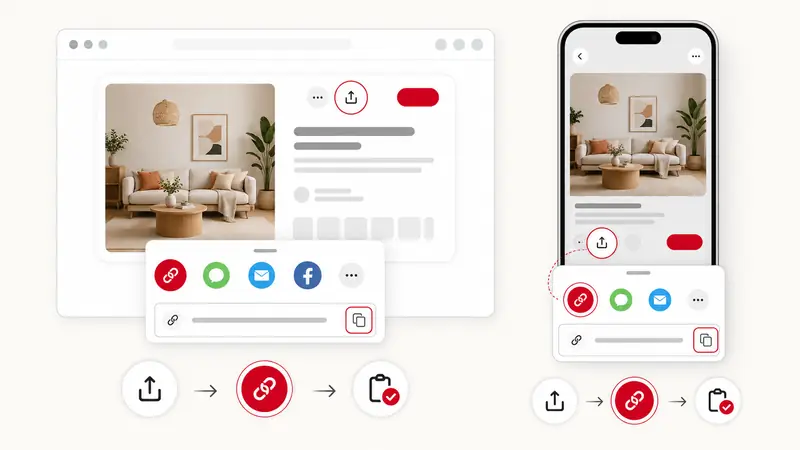
If you use Pinterest in a browser on Windows, Mac, or Linux, use the share button first. If Pinterest shows sharing options under a three-dot menu, use that menu instead. These are usually the most reliable ways to get a clean pin link.
- Open Pinterest in your browser.
- Click the pin you want to download.
- Make sure the pin is open as its own page, not just previewed in the feed.
- Click the share icon or the three-dot menu if that is where the sharing options appear.
- Choose Copy link.
- Paste the link into your Pinterest downloader, such as PintSave.
You can copy the URL from the browser address bar if the pin page is fully open, but the share button is safer because it avoids extra feed, search, or tracking information.
How to Copy a Pinterest Pin Link on Android
On Android, you can copy the pin link from the Pinterest app or directly from pinterest.com in Chrome or another mobile browser.
If you use the Pinterest app:
- Open the Pinterest app.
- Tap the pin you want to save.
- Tap the share icon.
- Select Copy link.
- Open your browser and paste the link into the downloader.
If you use Pinterest in Chrome, open pinterest.com, tap the exact pin, and copy the link from the address bar or the pin's share menu if it is available.
Avoid copying links from Google search results, Pinterest previews, boards, or profiles.
How to Copy a Pinterest Pin Link on iPhone
On iPhone or iPad, the process is similar. You can use the Pinterest app or open Pinterest in Safari.
If you use the Pinterest app:
- Open the Pinterest app.
- Tap the pin you want to download.
- Tap the share icon.
- Tap Copy link.
- Open Safari or another browser.
- Paste the link into PintSave or another Pinterest downloader.
If you use Pinterest in Safari, open pinterest.com, tap the exact pin, and copy the URL from the address bar. You can also use the pin's share button if Pinterest shows it in the browser.
If the copied link starts with pin.it, that is fine in most cases. It should lead back to the original Pinterest pin.
Common Mistakes to Avoid
Many download errors happen because the copied link does not point to the actual pin. Before trying again, check these common issues:
- You copied a board link instead of a pin link
- You copied a profile URL
- You copied a Pinterest search page
- You copied a link from the browser before opening the pin
- The pin is private or deleted
- The link opens a login page instead of the post
- You copied the image address, not the Pinterest pin URL
- You copied the source website link instead of the Pinterest pin link
If a downloader cannot find media, open the link in a new tab first. If it does not show one exact public pin, it is probably the wrong link.
How to Check If Your Pinterest Link Is Correct
A quick test helps:
- Paste the link into a new browser tab.
- Press Enter.
- Check what opens.
If it opens one exact public Pinterest pin, the link is probably correct. If it opens a board, profile, feed, or search page, copy the link again from the pin's share button or the pin page URL.
Final Tips
Use the share button whenever possible. It gives you a cleaner Pinterest pin link than copying random URLs from the browser or app preview.
Before using a Pinterest downloader:
- Open the exact pin first
- Copy the link from the pin's share menu
- Avoid board, profile, and search links
- Test the link in a new tab if something does not work
- Use a browser-based tool like PintSave to paste and check the link quickly
If PintSave cannot read the link, first check whether the URL opens one exact public pin. The right link helps the downloader find the correct video, image, or GIF without extra errors.