
Helpful next steps: How to Copy the Correct Pinterest Pin Link for DownloadingPinterest Downloader: What It Is, How It Works, and When to Use One
Pinterest is great for discovering images, but it is not always great at showing where an image first came from. A photo may be saved, repinned, resized, cropped, or linked to a page that is not the original source.
That matters if you want to credit a creator, buy a product, find a full tutorial, check usage rights, or avoid using someone else's work without permission.
You may not always find the true original source. But you can usually get closer to the most reliable source by checking the pin, the linked page, visual search results, and image details.
Why Pinterest Images Can Lose Their Source
A Pinterest pin does not always point to the original creator. The source can become unclear for several reasons:
- The image was repinned many times
- Someone uploaded the image without a source link
- The original page was deleted or moved
- The pin links to a roundup or gallery, not the creator
- The image was cropped, resized, or edited
- The pin leads to a product redirect or affiliate page
- The same image appears on many websites
This is why you should treat Pinterest as a discovery tool, not automatic proof of ownership or origin.
Start With the Pin Details
Open the pin and check what Pinterest already shows.
Look for:
- The linked website
- The pin title and description
- The account that uploaded or saved it
- Product tags or shopping links
- Comments that mention the source
- Similar pins shown below
If the pin has a website link, open it. But do not assume it is the original source yet.
Check the Linked Website Carefully
A linked page can be useful, but it can also be misleading. Once you open it, check whether the image really appears there and whether the page gives context.
Look for:
- Author or creator name
- Publication date
- Product details
- Tutorial steps
- Portfolio information
- Copyright or credit note
- Links to the original creator
Be careful with pages that only show scraped image collections, embedded Pinterest images, or generic "inspiration gallery" posts. Those pages may have copied the image from somewhere else.
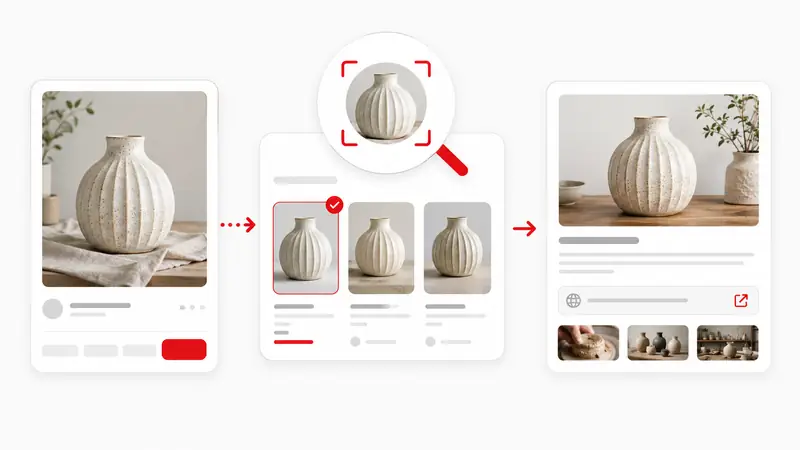
Use Pinterest Visual Search
Pinterest has visual search features that can help you find similar pins, related products, or specific objects inside an image. In the Pinterest app, Lens can also search from a camera photo or image from your camera roll.
This can help you find:
- Another version of the same image
- A clearer or less cropped version
- Similar products
- Pins with better descriptions
- Pins that link to a more credible source
Pinterest visual search does not guarantee the original creator. Use it as a way to gather clues, not as final proof.
Try Google Lens or Reverse Image Search
If Pinterest does not show a clear source, use Google Lens or another reverse image search tool. Google Lens can search with an uploaded image, an image URL, or an image from a website. Results may include similar images and websites that contain the same or similar image.
You can also try:
- Bing Visual Search
- TinEye
- Yandex Images
When reviewing results, do not trust the first result automatically. Look for the most credible result: a creator website, brand page, portfolio, shop, magazine article, or older page with full context.
Search Text Clues in the Image
Sometimes the image itself gives you the best clues. Look closely for:
- Watermarks
- Logos
- Artist signatures
- Creator handles or social media usernames
- Product labels
- Brand names
- Website URLs
- Text on packaging
- Unique object names
Search these terms in Google, Pinterest, or the relevant shopping platform. A small logo or product name can lead you to the original page faster than visual search.
Compare Quality, Dates, and Context
A likely original source usually has more context than a copied pin.
Check:
- Does the page show the full image or only a cropped version?
- Is the image higher quality than other copies?
- Is there an author, brand, or photographer?
- Does the page include a tutorial, product listing, or project details?
- Does the publication date make sense?
- Do other sites credit this page?
The oldest page is not always the original, but date and context help you judge credibility.
Save the Source Once You Find It
When you find a likely original source, save more than just the image.
Save:
- Source URL
- Creator or brand name
- Date checked
- File name or screenshot name, if you saved one
- Short note about why you saved it
- Usage or permission notes, if relevant
This is useful for design projects, school work, client presentations, product research, and content planning.
When You Should Not Use the Image
If you cannot verify the source, treat the image as inspiration only.
Do not use an unverified Pinterest image in:
- Ads
- Client work
- Product pages
- Social media posts for a brand
- Commercial presentations
- Any project where image rights matter
Pinterest says that permission to use an image or video should be sought from the copyright holder where necessary. Pinterest may not know who owns the copyright for a specific pin, so the responsibility is on you to check before reuse.
Final Tips
To find the original source of a Pinterest image, start with the pin details, open the linked website, use Pinterest visual search, try Google Lens, and compare context carefully.
A practical workflow:
- Open the pin and check its link.
- Visit the linked page and verify the image is really there.
- Use Pinterest visual search for similar pins.
- Use Google Lens or another reverse image search tool.
- Search watermarks, logos, names, and text clues.
- Compare image quality, dates, author details, and context.
- Save the source URL, creator information, and date checked.
Pinterest is excellent for discovering ideas. But if you need to credit, buy, cite, or reuse an image, take the time to verify where it likely came from. If you cannot verify the source, use it as inspiration, not as reusable content.